How to Check Your PHP Version and Fix a PHP Security Vulnerability
Find your website's PHP version, check whether it is affected by a security advisory, and follow a safer update and verification checklist.
Engineering · 7 min read · Kriyvo journal
In this article
Why checking your PHP version matters
A security announcement is useful only when you can connect it to the software your website actually runs. Your hosting account may offer multiple PHP versions, and command-line tools may use a different runtime from the public website. That is why the first step is to identify the PHP version serving the application, then compare it with the official advisory.
This guide provides a general defensive workflow. The precise fixed version and update procedure depend on the specific vulnerability, operating system, hosting provider, and deployment setup.
Step 1: Find out which PHP version your site uses
Option A: Use your hosting control panel — Many hosting providers expose a PHP version selector or runtime information in their control panel. Open the website's hosting settings and identify the PHP version assigned to the relevant domain or application.
The control-panel version is a starting point. If your account supports separate settings for subdomains, staging sites, or different applications, check each one separately.
Option B: Ask your hosting provider — On managed or shared hosting, you may not have permission to inspect or update the runtime directly. Ask support:
- Which PHP version serves my live domain?
- Is that version affected by the current advisory?
- Has the provider deployed the applicable security update?
- Do I need to change a setting or take action myself?
- Is a restart, cache refresh, or redeployment required?
Keep the answer and ticket number with your maintenance record.
Option C: Check a server you administer — If you have shell access, a command such as `php -v` can show the PHP CLI version. But the CLI version may differ from the PHP-FPM or web-server runtime serving requests. Confirm the web runtime separately using your server configuration or trusted hosting tools.
Avoid leaving a public `phpinfo()` page on a live website. Such a page can expose detailed configuration information. If a temporary diagnostic page is necessary, restrict access and remove it immediately after use.
Step 2: Compare the version with the official security advisory
Open the official advisory for the vulnerability you are investigating. Confirm:
- the exact affected version ranges;
- whether the issue depends on a particular configuration or feature;
- which releases contain the fix;
- whether your operating system or hosting provider backports the patch;
- whether the provider requires a separate service restart or redeployment.
Do not rely on a search snippet, social media post, or a blog title alone. Some Linux distributions backport security fixes without changing the upstream version string in the way a reader might expect. In those cases, the distribution's security notice is essential.
Step 3: Choose the correct update route
Managed or shared hosting: Use the host's documented PHP selector or support process. Check compatibility before switching versions, and ask the provider whether the security patch is already applied.
VPS or dedicated server: Follow the security guidance for your operating system and installed PHP packages. Before making changes, understand which package repository supplies PHP and whether the system uses multiple PHP-FPM pools or versions.
Docker or container deployment: Review the PHP base image and rebuild from a trusted, patched image. Deploy the rebuilt image through your normal release pipeline, then verify that the running container—not just the local image—uses the expected release.
Managed application platform: Follow the platform's runtime upgrade process. A project configuration file may specify the desired version, but the platform's build and runtime settings determine what is actually deployed.
Do not mix package-management methods or install an untrusted binary just to change the version number.
Step 4: Back up and test before updating
Before a production runtime change:
- Confirm that a recent backup exists and can be restored.
- Review the application's PHP compatibility and dependency requirements.
- Apply the update in staging if the environment is available.
- Test login, forms, checkout, API endpoints, uploads, scheduled jobs, and other business-critical flows.
- Review application and server logs for new errors.
- Prepare a rollback plan that does not require returning to a vulnerable version longer than necessary.
If a vulnerability is actively exploited or the official advisory calls for urgent action, follow the provider's emergency process and balance testing time against the security risk.
Step 5: Deploy the update
Use the documented method for your environment. In general, the process may include selecting a patched package, updating a runtime image, changing the platform runtime setting, or asking a host to patch the managed service.
The exact commands should come from your operating system, hosting provider, or deployment documentation. There is no single safe command that applies to every PHP installation.
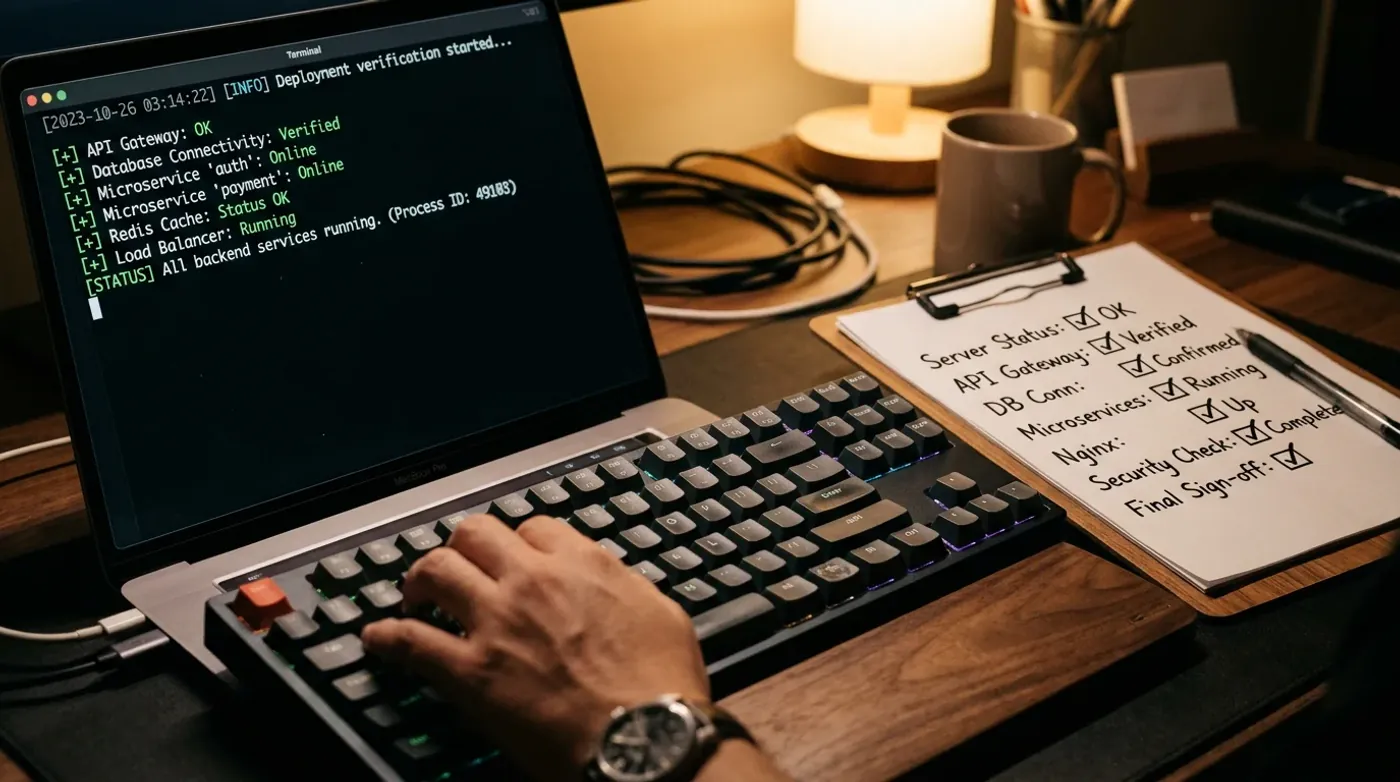
Step 6: Verify the production runtime
After the change:
- Re-check the PHP version used by the live website.
- Confirm the provider or package status indicates that the security fix is applied.
- Restart or redeploy the relevant service if the documented process requires it.
- Run the same critical tests performed in staging.
- Check logs, uptime monitoring, and error rates.
- Confirm that background workers and scheduled jobs use the intended runtime too.
A successful deployment command is not proof that every application instance has been updated.
Step 7: Review for signs of compromise when appropriate
Patching prevents exposure to the specific vulnerability going forward, but it does not undo a compromise that may have happened earlier. If the official advisory or your security monitoring indicates possible exploitation, follow your incident-response plan.
That may include preserving logs, reviewing unexpected file changes and accounts, rotating potentially exposed credentials, restoring from a known-good backup, and contacting a qualified incident-response provider. Do not delete evidence before it has been assessed.
Common mistakes to avoid
- Checking the PHP version on a laptop instead of production.
- Updating only the CLI while the web runtime remains unchanged.
- Assuming a plugin update patches the PHP runtime.
- Upgrading to an arbitrary newer version without checking application compatibility.
- Using unofficial patch files or commands from untrusted posts.
- Forgetting workers, staging environments, containers, or secondary domains.
- Assuming a version string alone proves that a distribution's backported fix is absent or present.
- Treating a successful update as proof that no prior compromise occurred.
PHP security update checklist
Use this checklist during maintenance:
- Official advisory reviewed
- Affected version and conditions confirmed
- Production runtime identified
- Hosting provider or package security notice checked
- Backup and rollback plan reviewed
- Compatibility tested
- Patched update applied through a trusted process
- Web runtime verified after deployment
- Workers and other environments checked
- Logs and critical site functions reviewed
- Maintenance record updated
Frequently asked questions
How do I check my PHP version? Use your hosting control panel, ask your provider, or inspect the server you administer. Remember that `php -v` commonly reports the command-line version, which may differ from the website's runtime.
How do I know which PHP version fixes a vulnerability? Check the official PHP release announcement and any applicable operating-system or hosting-provider security advisory. Use the fixed version specified for your environment.
Can I update PHP without breaking my website? Testing compatibility and dependencies first reduces the risk, but no update can be guaranteed to be impact-free. Use staging, backups, a controlled deployment, and post-update checks.
Does updating PHP remove malware? No. Updating addresses the vulnerability covered by the patch; it does not automatically find or remove malware or reverse an earlier compromise.
Should I update PHP myself on shared hosting? Use the host's documented process. If you do not administer the runtime, ask the provider to confirm whether the patch has been applied and whether any action is needed from you.
Official references
- PHP downloads and releases: https://www.php.net/downloads.php
- PHP supported versions: https://www.php.net/supported-versions.php
- PHP news archive: https://www.php.net/archive/2026.php
Editorial note: For an article tied to a specific CVE, add the exact official advisory and fixed-release details after checking them immediately before publishing.
Need a safer website maintenance process?
Kriyvo AI works on business websites and automation solutions. If you need technical help, begin by identifying who controls your hosting runtime and ask for a documented update and verification plan. Never share passwords or private credentials to request a basic review.
Need this built? AI automation engineering
Connect business processes, APIs and AI where they add value — from lead processing and feedback routing to reporting.
See the serviceWritten for the Kriyvo journal. Product claims reported by third-party sources are not independent Kriyvo AI benchmarks.